Last updated: June 11, 2026
Accounting Integrations
Connect Xero or QuickBooks Online to sync revenue, expenses, and cash flow automatically. No manual data entry, no copy-paste from spreadsheets.
Connecting
Go to Financials → Actuals and click Connect Accounting. Choose Xero or QuickBooks, log in, and authorize access.
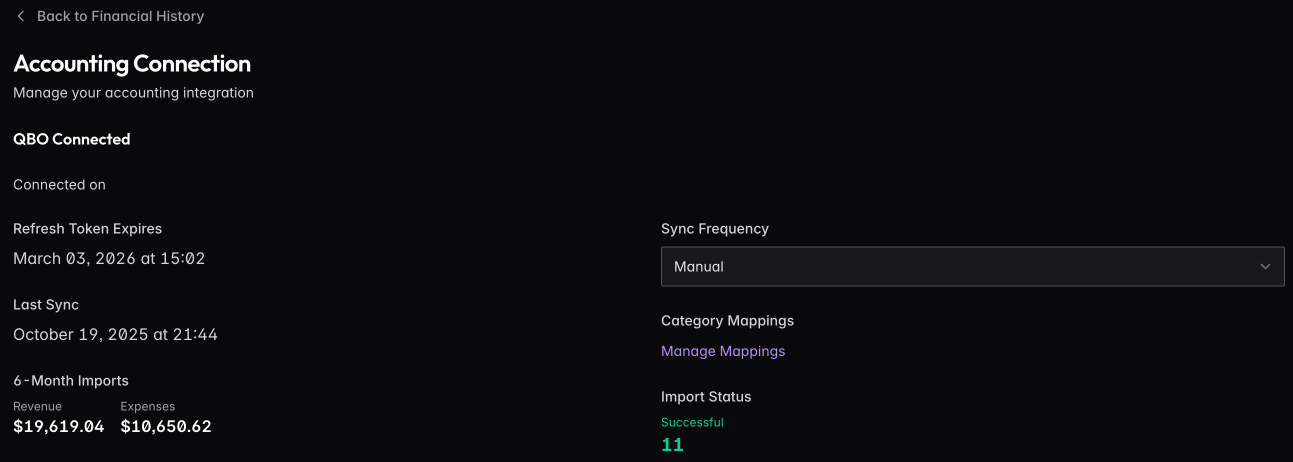
Once connected, you’ll see connection status, token expiration, last sync time, and a summary of imported data.

Category Mappings
Your accounting software has its own chart of accounts. FoundersBoxx needs to know how to categorize each account — what’s revenue, what’s COGS, what’s an operating expense.
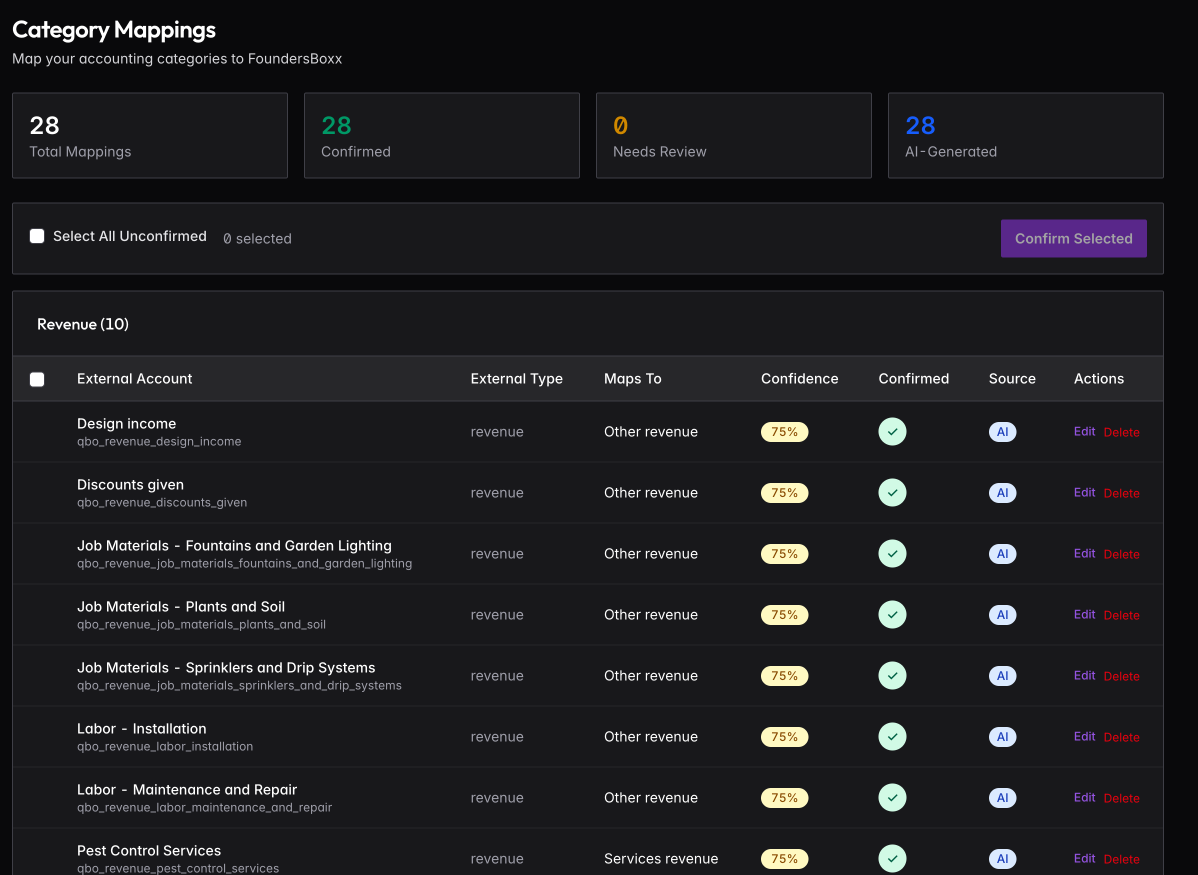
Click Manage Mappings to see how accounts are mapped. The system suggests mappings automatically (marked as AI-generated with a confidence score). Review and confirm them, or edit to fit your needs.
Unmapped accounts won’t be imported. If you’re missing data, check for accounts that need mapping.
Syncing
Set sync frequency to manual or automatic. Click Sync Now to pull data immediately. The sync history shows every import with status, duration, and record counts.
Recent imports show what came in each month: revenue, COGS, SG&A, and cash figures with import dates.
Managing the Connection
Refresh Token — if the connection expires, refresh to re-authorize without losing your settings.
Disconnect — removes the integration but keeps data already synced.
FoundersBoxx only reads from your accounting software — it never writes back. Your accounting system stays clean.